Controller Guide for Capy Castaway
Couch-first bindings for Capy and Corvi.
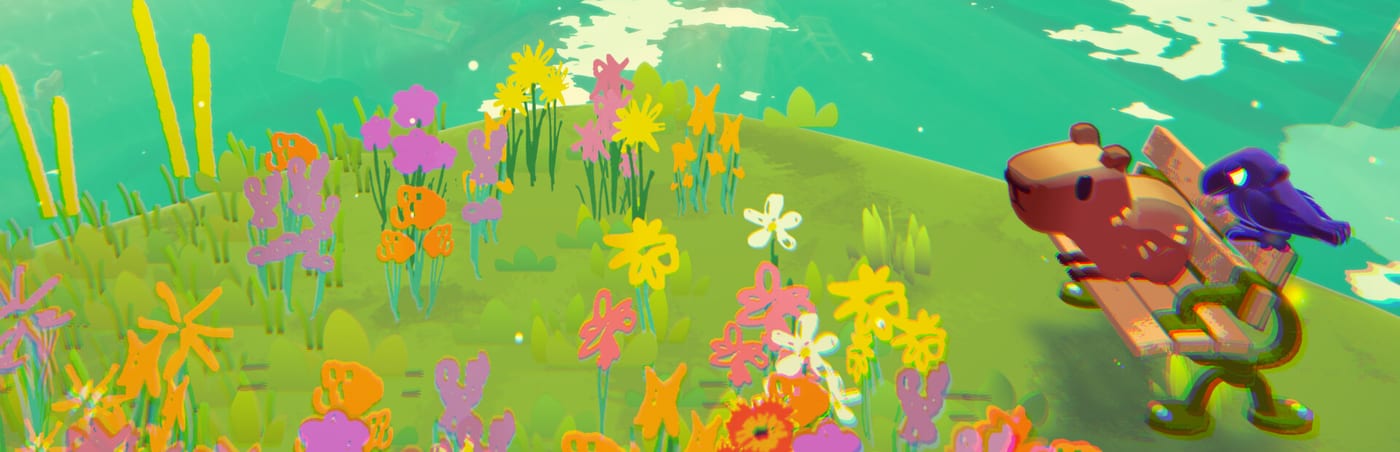
A controller is the natural fit for Capy Castaway’s cozy co-op fantasy. Kitten Cup Studio targets Steam, Steam Deck, Windows, and macOS for the August 6, 2026 launch published by Big Blue Sky—shared-screen nights, living-room Deck docking, and Remote Play guests with gamepads all benefit from clear face-button verbs and gentle stick curves. This guide focuses on habits that keep Capy’s ground tools and Corvi’s aerial tools readable under couch lighting, not on unverified default bindings that may change in day-one patches.
Layout philosophy
Map the most frequent actions to the easiest faces so digging, fetching, and talking never fight the same thumb:
- Interact / talk on a primary face button—this is your social and quest workhorse.
- Sniff / dig or contextual ground ability on a nearby face or trigger so Capy’s loop feels rhythmic.
- Fetch / fly on shoulder buttons for quick Corvi aerial pops without rebinding mid-puzzle.
- Character switch (solo) on a dedicated face, back paddle, or Deck grip—muscle memory matters when puzzles demand Sniff → Dig → Fetch chains.
- Camera on the right stick with optional invert per player.
- Pause on Start; optional map or inventory on Select / touchpad if supported.
After launch, star community layouts inside Steam Big Picture once you customize them—Capy Castaway’s low-intensity pacing rewards consistency over esports precision.
Local two-controller setup
Connect both pads before boot when possible. Confirm Player 1 / Player 2 assignment on the title screen, then stand in a safe hub until both Capy and Corvi move simultaneously. If one pad sleeps mid-quest, re-pair before a carry puzzle—dropped carries waste more time than they look funny.
Run the full Co-op Setup Checklist once, then only revisit when hardware changes. Agree invert settings immediately; do not “get used to” inverted camera during story beats.
Player-specific comfort
Capy players spam interact and dig more than they expect. Keep interact on a face button, not a clicky stick press, to reduce thumb fatigue during long Help Castaways sessions.
Corvi players live on shoulders for fetch bursts. If your pad lacks comfortable shoulder travel, map fetch to a paddle and practice rooftop grabs in Swallow Town before timed soup deliveries.
Gyro and adaptive features
On DualSense or Steam Deck, mild gyro camera can help line up fetches, but high gyro often fights cozy pacing—start low and raise only for precision rooftop moments. Adaptive trigger resistance is optional flavor, not required for puzzles. Deck players docking to TV should test gyro off first; couch guests rarely expect motion controls.
Steam Input and guest pads
Mixed-brand couch setups are common—Xbox, PlayStation, and Switch-style controllers all appear in Steam living rooms. Enable Steam Input per game when prompts conflict, and disable overlapping Steam Chord shortcuts that steal the Guide button mid-fetch.
For Remote Play guests, confirm their virtual controller maps interact and fetch correctly before leaving tutorial space. Latency makes silent assumptions expensive; verbal callouts beat perfect bindings when streaming.
Comfort settings that matter
Reduce stick outer deadzone if characters feel sticky on worn pads; increase deadzone if sticks drift on older controllers. Vibration can telegraph dig success—keep it on unless sharing a quiet space with sleeping humans. For long reading scenes, headphones help Corvi’s chatter shine without blasting TV volume.
Subtitle size matters for story-heavy evenings. If platform accessibility sliders exist, bump text before you blame the controller for missed dialogue cues.
Common issues
- Second controller ignored: restart Steam Input, ensure the game sees two pads in your mode (local co-op vs solo), reboot from title screen.
- Inverted camera discomfort: toggle invert immediately for each player—co-op suffers when one partner fights the stick.
- Accidental screenshot or Steam overlay: disable conflicting chords for guests unused to Steam’s guide button layers.
- Character switch mis-presses: move switch off the same face as interact if solo players keep opening menus mid-dig.
Tie-in gameplay routes
Controllers shine during Soup Competition deliveries where both players move under soft time pressure, and during tourism loops from Exploration Tips. Solo players should still practice switch discipline from How to Play even if couch co-op is the dream—Castaway Island puzzles assume you can reach both verb sets fluently.
Pair hardware prep with Duo Combos so bindings support sequences, not isolated tricks. When a fetch-and-deliver loop feels clumsy, fix layout before blaming skill.
Handheld versus docked
Steam Deck handheld play maps well to solo switching with grip paddles; docked TV co-op wants two full-size pads and the Steam Deck Tips heat checklist. Treat Deck as a couch console when plugged in—local co-op etiquette matches desktop once controllers outnumber built-in sticks.
A good controller layout disappears, leaving mud, hats, fetch callouts, and crow commentary as the only things your thumbs remember.
Frequently Asked Questions
Quick answers to the most common questions.
Which controller brand works best?
Any Steam-supported pad works. Pick what your hands know—consistency beats brand prestige for cozy pacing.
Can I play solo with one controller?
Yes. Solo mode is fully viable on a single pad with character switching bound comfortably.
Are touchpads useful on DualShock or DualSense?
Map menus, map toggles, or camera resets if you miss touchpad habits from other adventures.
Do I need two controllers for Remote Play?
The guest uses their own virtual controller through streaming. The host still needs a reliable pad for the primary player.
Keyboard alternative?
See [Keyboard & Mouse](/controls/keyboard-mouse/) for desk setups and hybrid co-op plans.
Will official bindings be listed here later?
After launch we will align this guide with verified defaults from [Updates](/updates/) if Kitten Cup publishes a layout reference.